You found a Space that sounded exactly like your thing. It started at 3 a.m. in your time zone, or it ran while you were underground with one bar of signal. By the time you opened the app, the room was closed and no replay appeared. That is the scenario this guide is built around, and it is why so many people search for how to save X Spaces for offline listening.
What follows is a device-by-device walkthrough: what to install, how to capture a session while it is still live, how to get the finished file onto your phone or laptop, and which credit package matches the way you listen. We also cover the case nobody likes, the Space that ended before you got there.
Who Needs Offline X Spaces and What Problem They Solve
Three kinds of listeners keep hitting the same wall.
The commuter. Forty minutes on a subway line with no data. A saved Space is the only thing that makes the ride useful, because streaming is not happening two hundred feet below street level.
The international listener. The host goes live at 7 p.m. Eastern. You are in Berlin, or Manila, or Lagos, and that slot lands at 1 a.m. or 4 a.m. Your time zone will never line up with theirs, and the live moment is the only moment.
The busy professional. A flight, a back-to-back block of meetings, or a focused work session with notifications off. You have the interest and the attention, just not at the hour the Space happens.
Notice what all three have in common. Discovery is not the problem. You already found the Space, or you already follow the host. The problem is timing and connectivity, and it stays a problem because an X Space is live-only audio. Once the session ends, the stream is gone unless somebody captured it.
Offline listening solves that with a local file. MP3 if you only need audio, MP4 if you also want a video version for editing or posting. Either one plays in a standard player with zero data usage: on a plane, in a tunnel, in a gym basement with no reception.
One limitation belongs up front, because it shapes everything else. A Space that has already ended cannot be recorded afterwards if the host did not record it. Your offline plan has to start before or during the live session. There is no way around that, and any tool claiming otherwise is not being straight with you.
How XRecorder Turns a Live X Space Into a Stored MP3 or MP4 File
The first thing to settle when you want to know how to save X Spaces for offline listening is where the capture happens. XRecorder records and downloads X/Twitter Spaces and hands you the result as either MP3 or MP4. Audio-only MP3 is the file you load onto a phone for the commute. MP4 gives you video you can cut up, caption, or repost later. Same session, two useful outputs.
It runs in three places, which matters more than it sounds:
- A Chrome extension, for quick capture from a browser tab.
- An Android app, for recording on the phone you already carry.
- A Windows app, for long sessions on a machine that stays plugged in.
That covers the three situations an offline listener faces: desktop at home, phone on the move, laptop while traveling.
After capture, you can trim and edit the audio and create a video from it. This is the step people skip and then regret. A three-hour Space usually holds about forty minutes you care about. Cutting the intro, the dead air, and the two sponsor reads before the file lands on your device makes the offline version shorter, lighter, and much easier to resume on a second walk.
There is transcription too. Turning a recording into text lets you skim a long session and decide which parts are worth keeping for offline playback, instead of downloading three hours to find out. If you want the fuller picture of what the tool covers, the X Spaces download page lays it out.
Saving X Spaces for Offline Listening on Android
Your phone is the device you listen on, so start here.
- Install the Android build of XRecorder and sign in.
- Start a recording while the Space is live, or schedule it in advance if you know when the host usually goes on.
- When the session wraps, download the finished file as MP3 straight to the phone's local storage.
- Switch to airplane mode and press play. Confirm it works before you rely on it for a Monday commute.
- Open the trim and edit tools and cut the intro, the dead air, and any sponsor segment. Shorter files resume better and take less space.
If any of those steps look unfamiliar, the XRecorder usage guide walks through the interface screen by screen.
The trade-off is storage, and it adds up faster than people expect. A two-hour MP3 is manageable. Add an MP4 of the same Space and you are carrying the session twice. Keep the video version only when you have a real plan for it, like a clip for X or a highlight reel. For pure listening, MP3 alone is the sensible default.
Saving X Spaces for Offline Listening on Windows and Laptop
The Windows app or the Chrome extension handles capture on a desktop or laptop. This is the most reliable setup you can have for long Spaces: stable Wi-Fi, no battery anxiety, and no operating system deciding to kill a background app halfway through hour two.
The flow is short. Record the live Space, export MP3 for audio-only listening, and export MP4 only if you want a video file for editing or posting. Then move the file where you need it.
Getting one recording onto several devices is where a little planning pays off:
- Drop the file into a synced folder so it appears on your phone or tablet automatically.
- Copy it straight to a phone or tablet over a cable.
- Upload it to a cloud drive and pull it down to whichever device you are traveling with.
The practical note here is about order of operations. Recording on desktop first and transferring afterwards avoids the battery and background-app limits that can interrupt a phone recording mid-Space. When you have the choice, capture once on the machine and distribute from there. Some people try screen recording instead, and there is a reason a dedicated X broadcast downloader tends to work out better.
Using Auto-Track So You Never Miss a Space You Want Offline
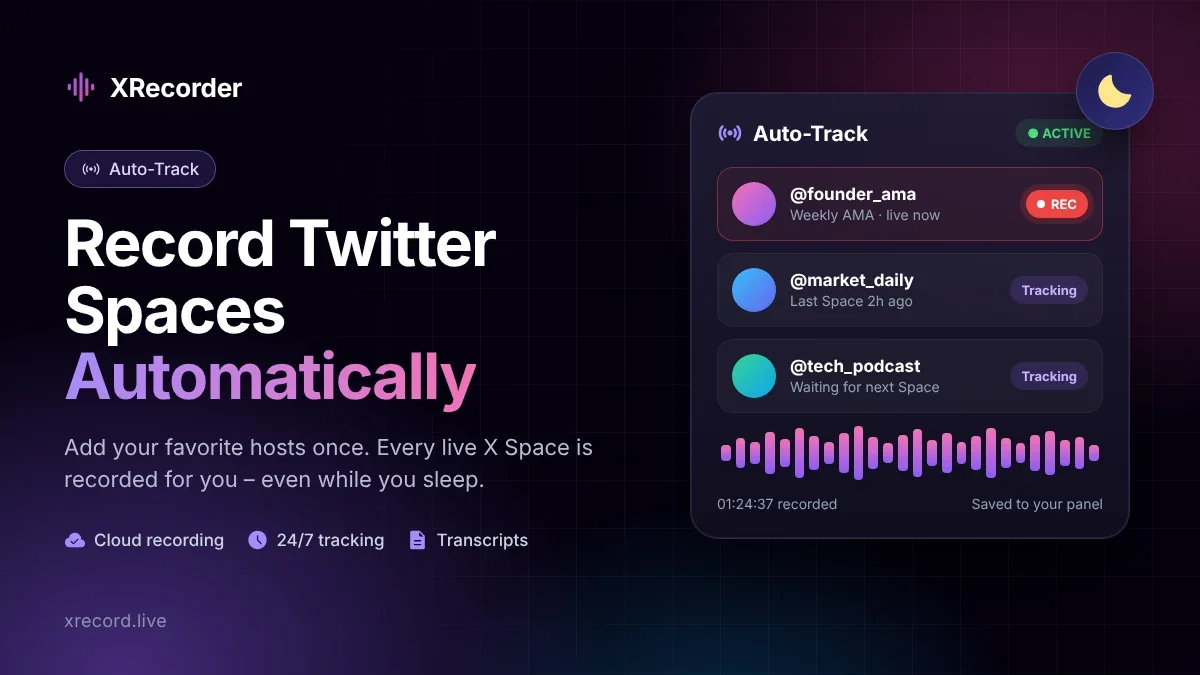
Auto-Track removes the hardest part of the whole process: being online at the exact second a host starts talking.
You follow an account. When that account opens a Space, it gets recorded automatically. No reminder, no alarm set for 3 a.m., no refreshing a profile. The recording is waiting for you, and you decide later whether you want it saved for offline playback. It is the closest thing to a set-and-forget answer for how to save X Spaces for offline listening.
The numbers matter when you pick a package. Auto recordings are not unlimited:
- Premium includes 15 auto recordings.
- Premium Plus includes 40.
- Starter includes none.
Match that to your habit honestly. If you follow two or three hosts and catch most of their Spaces, Premium covers you comfortably. If you track a dozen accounts, or you are monitoring a whole industry and want the option to keep anything interesting, Premium Plus is the tier that will not run dry in the middle of a busy week.
One reminder, the same limitation in a different shape: auto recording only works going forward. It cannot recover a Space that already ended without a host-side recording. Switch it on before the week you need it, not after.
Choosing Between Starter, Premium, and Premium Plus for Offline Downloads
All three packages are one-time payments, not subscriptions. That changes the question worth asking. It is not what this costs per month, it is how many Spaces you realistically expect to save offline, and how far ahead you want auto recording to run.
| Package | Price | Download credits | Auto recordings | Storage | Support |
|---|---|---|---|---|---|
| Starter | Free | 2 | None | 3 months | No priority support |
| Premium | $25 | 15 | 15 | 2 months | Priority |
| Premium Plus | $40 | 40 | 40 | 3 months | VIP priority |
All three include Twitter sharing and fast download. Starter is the free way to test capture and editing on one or two Spaces. Premium fits a listener with a handful of favorite hosts. Premium Plus suits someone tracking many accounts or building a personal archive they intend to work with.
What to Do When the Space Already Ended Before You Could Save It

So the fix is preventive rather than corrective:
- Turn on Auto-Track for the hosts you follow. Every future Space gets captured the moment it starts, awake or asleep.
- For hosts who do post their own replays, use the downloader to pull that replay into a local MP3. A replay that streams can disappear. A file on your device cannot.
Set your expectation somewhere realistic. Offline saving works for live capture and for replays that are available. It does not work for a live-only session that has already vanished, and no tool can change that.
Sharing an Offline Recording Back to X or Reusing It as Content
A recording does not have to stay on your device. Files can be shared directly on X/Twitter, so an offline capture can go back to the platform as a clip or a full replay post for everyone who missed it the first time.
The editing tools do most of the work here. Trim a long Space down to the moments that landed, then create a video from the audio if you want something more visual in the timeline. Nothing fancy required, and the result usually performs better than a three-hour dump.
Transcription gives the same file a second life. Turn the recording into text and you have show notes, a transcript post, or the first draft of a blog piece, all from a Space you had already saved for your own commute.
That is the real value of capturing sessions properly. One recording becomes an offline MP3 for the subway, an MP4 clip for a post, a transcript for notes, and a shareable link for the people who missed it. If you make content from live audio, that angle is covered in more detail in our piece on why every creator needs an X Space downloader, and there are more workflows on the XRecorder blog.
Common Questions About Saving X Spaces Offline
How do I download X Spaces for offline listening?
Start a recording while the Space is live, using the Android app, the Windows app, or the Chrome extension. When the session ends, export the file as MP3 for audio-only listening, or MP4 if you want video, then save it locally and test it in airplane mode.
Can I download a Twitter Space after it has ended?
Only if a recording exists. A Space that has already ended cannot be recorded afterwards when the host did not record it. If the host posted a replay, download that instead and keep it as a local file.