X Spaces (formerly Twitter Spaces) are live audio rooms where creators, journalists, founders and communities hold interviews, AMAs, market talks and product launches. The problem is simple: you cannot always listen live, and replays can be removed by the host at any time. This guide shows how to save a Space as an audio file you can keep, using the free web-based Twitter Spaces downloader XRecorder, plus how to fix the most common errors.
Quick answer: download a Twitter Space in 5 steps
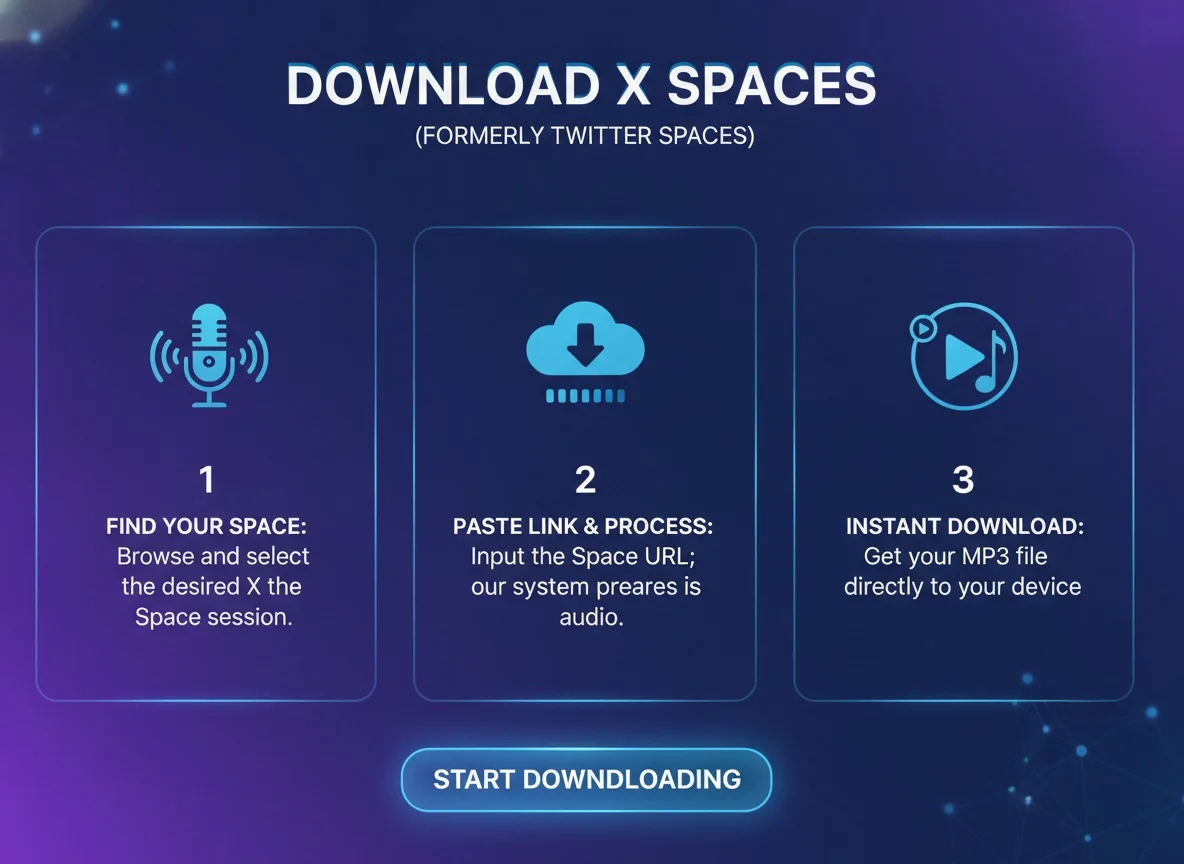
- Open the Space on X and choose Share → Copy link.
- Go to xrecord.live and paste the link into the Space URL field.
- Click Download (sign in or create a free account if asked).
- Wait until the status changes to Completed. A live Space keeps recording until the host ends it.
- Download the finished audio file from your panel and play a few seconds from the start, middle and end to check it.
In this guide
- Which links work (and which do not)
- Live Spaces vs. replays
- Step-by-step guide with XRecorder
- Record future Spaces automatically
- Organize and store your recordings
- Troubleshooting
- Responsible use
- FAQ
Which links work (and which do not)
Most failed downloads are caused by the wrong kind of link. A downloader needs the unique ID of the Space, which only appears in the Space link itself.
| Link you copied | Example | Works? |
|---|---|---|
| Space link (x.com) | https://x.com/i/spaces/1AbCdEfGhIjKl |
Yes |
| Space link (twitter.com) | https://twitter.com/i/spaces/1AbCdEfGhIjKl |
Yes |
| Post that shares a Space | https://x.com/user/status/123… |
Sometimes – open the Space card and copy the Space link instead |
| Profile link | https://x.com/username |
No – it has no Space ID ("Unsupported URL") |
| Live video broadcast | https://x.com/i/broadcasts/… |
No – this is a video stream, not a Space |
Tip: on mobile, tap the Space, open the share icon and choose Copy link. On desktop, copy the address bar while the Space is open. Remove any text you pasted before or after the URL.
Live Spaces vs. replays

| Live Space | Replay (ended Space) | |
|---|---|---|
| What happens | XRecorder joins and records new audio as it is broadcast | XRecorder fetches the recording that already exists |
| When the file is ready | Shortly after the host ends the Space | After processing; longer Spaces take longer |
| Main risk | Stopping too early gives an incomplete file | The host can delete the replay at any time |
| Best practice | Start as early as possible and let it run | Save important replays immediately |
If a host has turned off replays or deleted the Space, the audio is gone at the source. No downloader can recover audio that X no longer serves, so save valuable Spaces while they are still available.
Step-by-step: how to download Twitter Spaces with XRecorder
Step 1: Copy the Space link
Copy the full Space URL as described above. It should contain /i/spaces/ followed by the Space ID.
Step 2: Paste it on the XRecorder home page
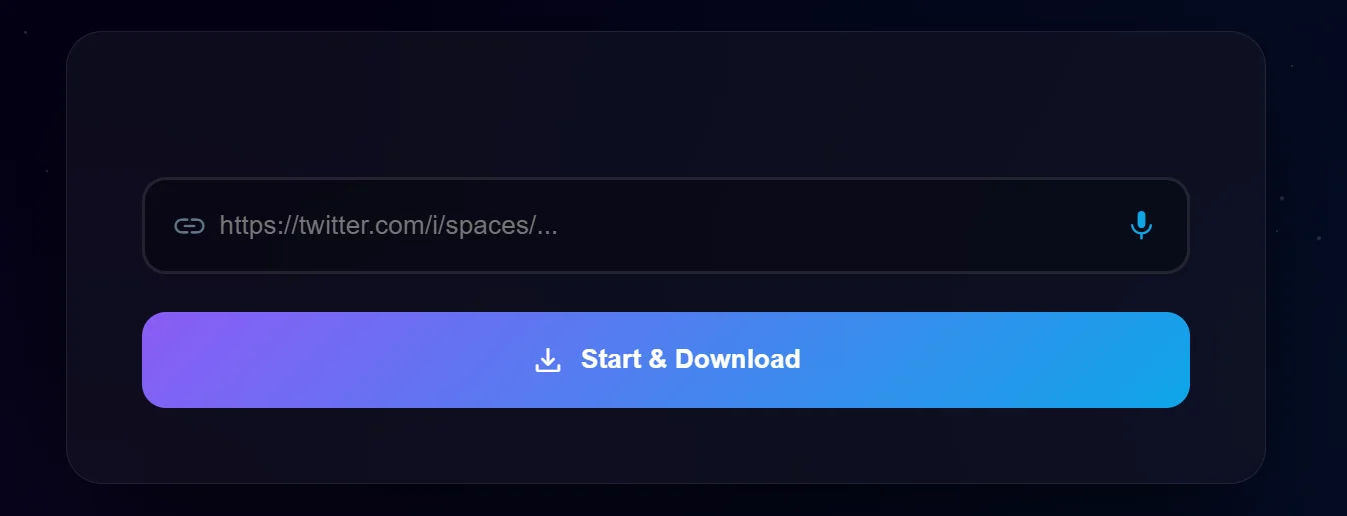
Open the Twitter Spaces download tool and paste the link into the URL field. If you are not signed in, XRecorder keeps your link and asks you to log in or register first, so you do not have to paste it again.
Step 3: Start the download
Click the download button. XRecorder checks the link, detects whether the Space is live or a replay and starts the right process. Each download uses one credit from your account; you can see your remaining credits in the header and compare plans on the packages page.
Do not submit the same link several times. One request is enough – follow its status in your panel.
Step 4: Follow the status
- Pending / Processing – audio is still being recorded or prepared.
- Completed – the file is ready to download.
- Failed – the Space could not be reached. See troubleshooting.
Step 5: Download and check the file
Download the audio from your panel and save it somewhere you will find it again. Play a few seconds near the beginning, middle and end to confirm the whole conversation is there before you delete anything or share it with your team.
Record future Spaces automatically
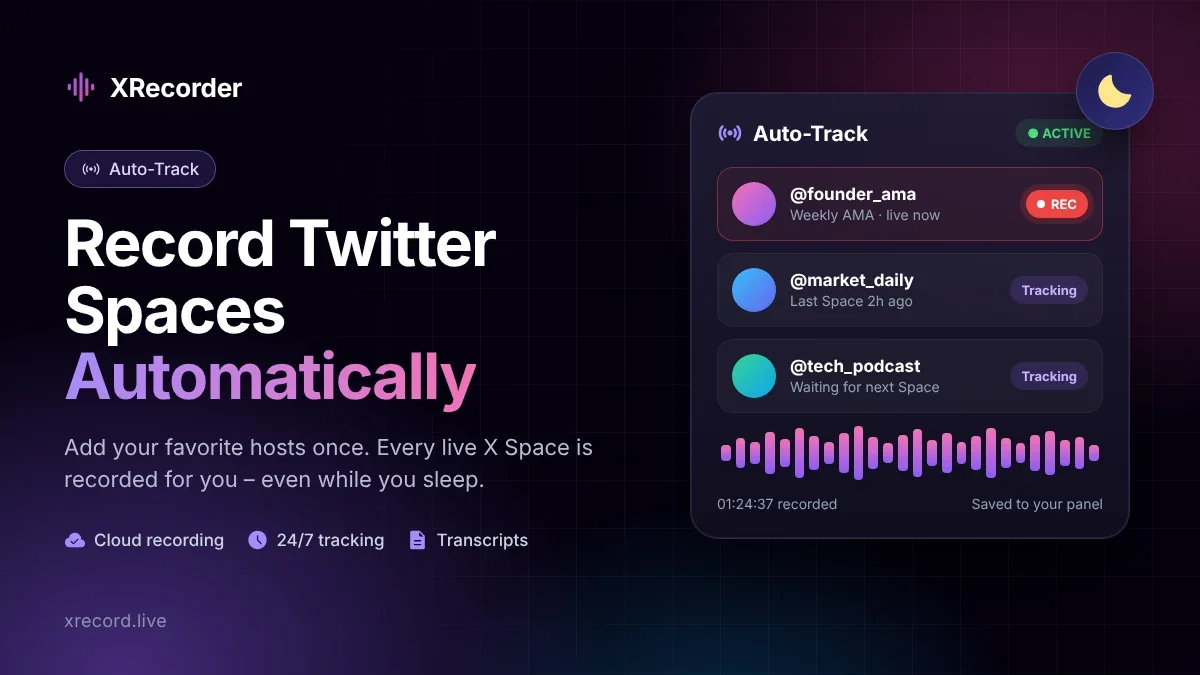
If you follow a host who goes live often, you do not need to catch every Space by hand. With Auto-Track you add the X accounts you care about, and XRecorder starts recording when they open a Space. The recording then appears in your panel like any other download. The XRecorder user guide explains how to set it up.
Prefer an app? XRecorder is also available as a Chrome extension and as Android and Windows apps, so you can start a download from the device you are using.
Organize and store your recordings
Use a clear file name
A consistent pattern makes a growing archive searchable and sorts recordings by date automatically:
2026-08-26_hostname_topic-of-the-space.mp3
Plan your storage
Audio size depends on bitrate and length. As a rough guide for one hour of audio:
| Bitrate | Approx. size per hour |
|---|---|
| 64 kbps | ≈ 29 MB |
| 128 kbps | ≈ 58 MB |
| 192 kbps | ≈ 86 MB |
Keep a backup
Keep important recordings in at least two places (for example your computer and a cloud drive). Group them in folders by project or topic, and keep transcripts and notes next to the audio file.
Troubleshooting: common Twitter Spaces download problems
"Unsupported URL" or invalid link
You probably copied a profile or post link. Copy the Space link itself (it contains /i/spaces/) and try again.
The replay is no longer available
The host deleted the Space or turned off its replay. The audio cannot be downloaded any more. Next time, start the download while the Space is live or use Auto-Track.
The Space is still live
This is normal. The file is created after the host ends the Space. Leave the request running and check back later.
The recording is shorter than the Space
Live recording started late or was interrupted. If a replay is still available, submit the replay link once the Space has ended to get the full audio.
The file does not play
Check that the download finished and the file size is not unusually small. Download it again from your panel and open it in a modern player such as VLC.
Responsible use
Being able to save audio does not give you the right to republish it. For personal listening, notes and research, keep recordings private. Before you publish a clip, a podcast episode or a transcript of someone else's Space, ask the host and speakers for permission, keep quotes in context and remove personal information such as phone numbers or private stories. For your own Spaces, a downloaded file is an easy starting point for podcasts, summaries and blog posts.
Frequently asked questions
Can I download a Twitter Space after it has ended?
Yes, as long as the host has kept the replay available. Paste the Space link into XRecorder and download the file when processing is complete.
Can I record a Space while it is live?
Yes. Submit the link while the Space is live; XRecorder records until the host ends it and then prepares the file.
Do I need to install software?
No. XRecorder works in the browser. The Chrome extension and the Android and Windows apps are optional.
Does the host know I downloaded the Space?
XRecorder saves the audio of the Space; it does not post anything on your X account. Treat recordings of other people respectfully and follow the responsible-use tips above.
How long does processing take?
It depends mainly on the length of the Space. A live Space is finished shortly after it ends; a long replay takes longer to process than a short one.
Is downloading Twitter Spaces free?
You can start with a free account. Each download uses a credit, and extra credits are available on the packages page.
Save your next Space before it disappears
Replays can vanish without warning, so the best time to save a Space is now. Copy the Space link, paste it into the XRecorder Twitter Spaces downloader and keep the audio for listening, notes or your own archive.