Some of the best conversations on X happen at the worst times: a founder AMA at 3 a.m. your time, a market update while you are in a meeting, a community call that starts without warning. If you only find out about a Space after it has ended, you depend on the host keeping a replay – and many hosts do not. The reliable solution is to stop chasing Spaces manually and let a tool record them for you. This guide shows how to record Twitter Spaces automatically with the Auto-Track feature of XRecorder, who it is for, how to set it up and how to get clean, complete recordings every time.
Why record X Spaces automatically?
Manual recording works when you know exactly when a Space starts and you are free at that moment. In practice, that is rarely the case. Spaces are often announced only minutes before they begin, run longer than planned or are started spontaneously. Automatic recording removes the timing problem completely.
- You never miss the start. A manual recording that begins ten minutes late loses the introduction, which is often where the most important context is given.
- Replays are not guaranteed. Hosts can end a Space without keeping a recording or delete the replay later. A live recording is the only way to be sure you have the audio.
- Time zones stop mattering. If the hosts you follow are in another part of the world, their Spaces can be recorded while you sleep.
- It scales. Following five or ten active hosts by hand is a full-time job. Automatic tracking handles all of them in parallel.
Who uses automatic Space recording?
Auto-Track is useful for anyone who depends on information shared in X Spaces, not just for casual listeners.
Journalists and researchers Public figures, companies and officials increasingly make statements in Spaces instead of press releases. A complete recording lets you quote accurately, check what was said and keep a source archive for later reference.
Crypto, finance and tech communities Project teams announce roadmaps, token updates and partnerships in weekly AMAs. Traders follow analysts who share market views live. Recording these sessions automatically means you can review the exact wording instead of relying on screenshots and summaries posted by others.
Podcasters and content creators If you host your own Spaces, automatic recording gives you a ready-made source file for podcast episodes, short clips, newsletters and blog posts – without having to remember to press record before every session.
Community managers and brands Brands that run regular Spaces can archive every session for internal review, compliance or training, and share the replay with team members who could not attend.
How Auto-Track works
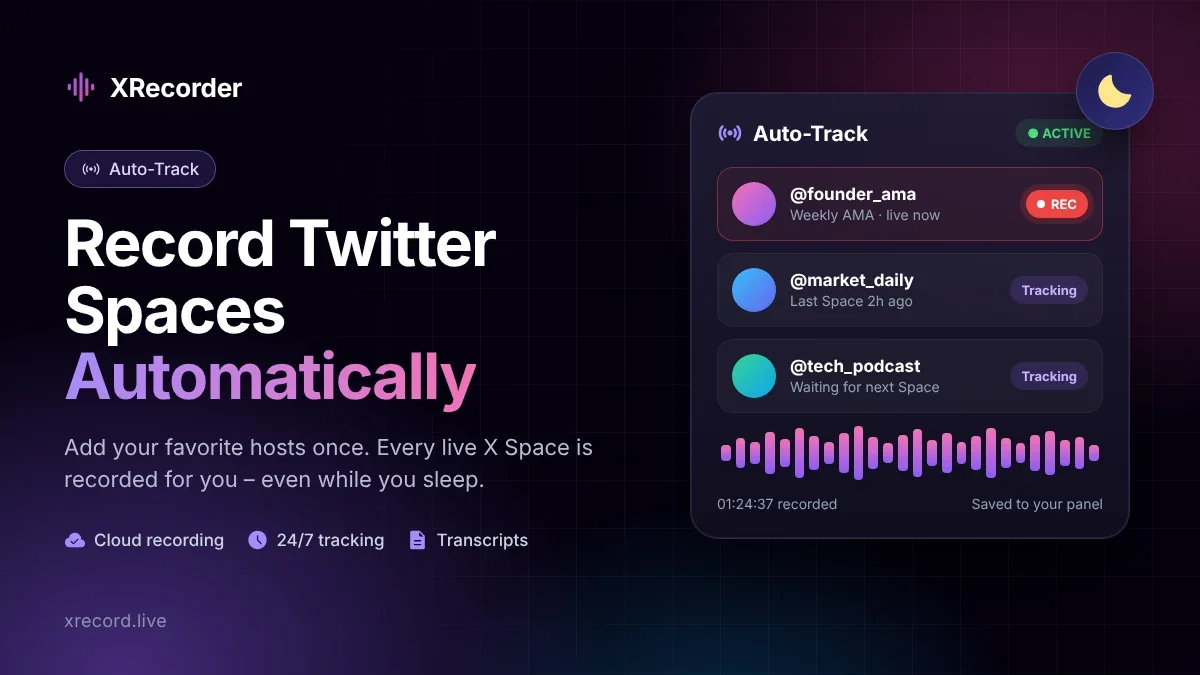
The idea is simple: you tell XRecorder which X accounts you care about, and XRecorder watches them for you.
- You add the X username of a host to your tracking list.
- XRecorder checks that account for new Spaces.
- When the host starts a Space, XRecorder joins it and starts recording automatically.
- The recording runs on XRecorder's servers until the host ends the Space – your computer can be off.
- The finished audio appears in your panel, where you can play, download, share or transcribe it.
Because everything happens server-side, there is no browser tab to keep open, no screen recorder to start and no risk that your own Wi-Fi drops in the middle of a two-hour session.
How to set up Auto-Track step by step
Step 1: Create an account and choose a plan
Register for free on xrecord.live. Auto-Track is included in the Premium and Premium Plus plans; the free Starter plan covers manual downloads only. You can compare the plans on the packages page.
Step 2: Open the Auto-Track page
Sign in, open the account menu in the top right corner and choose Auto-Track. This page shows your tracking list, your current plan and your remaining credits.
Step 3: Add a host
Type the X username of the host into the input field – just the name, without the @ sign and without the full profile URL – and click Add. The account appears in your list with the status Tracking. If you try to add an account twice, XRecorder tells you that it is already being tracked.
Step 4: Add more hosts
Repeat the previous step for every account you want to follow. A good starting point is a short list of hosts whose Spaces you would genuinely regret missing; you can extend it later.
Step 5: Let it run
That is all. When a tracked host goes live, the recording starts on its own. You will find it in your panel with the usual status flow: Processing while the Space is running, Completed once the file is ready.
Step 6: Manage your list
Each tracker in your list shows its status – Tracking or Stopped – and you can delete a tracker at any time when you no longer need it.
Plans, credits and auto-recording limits
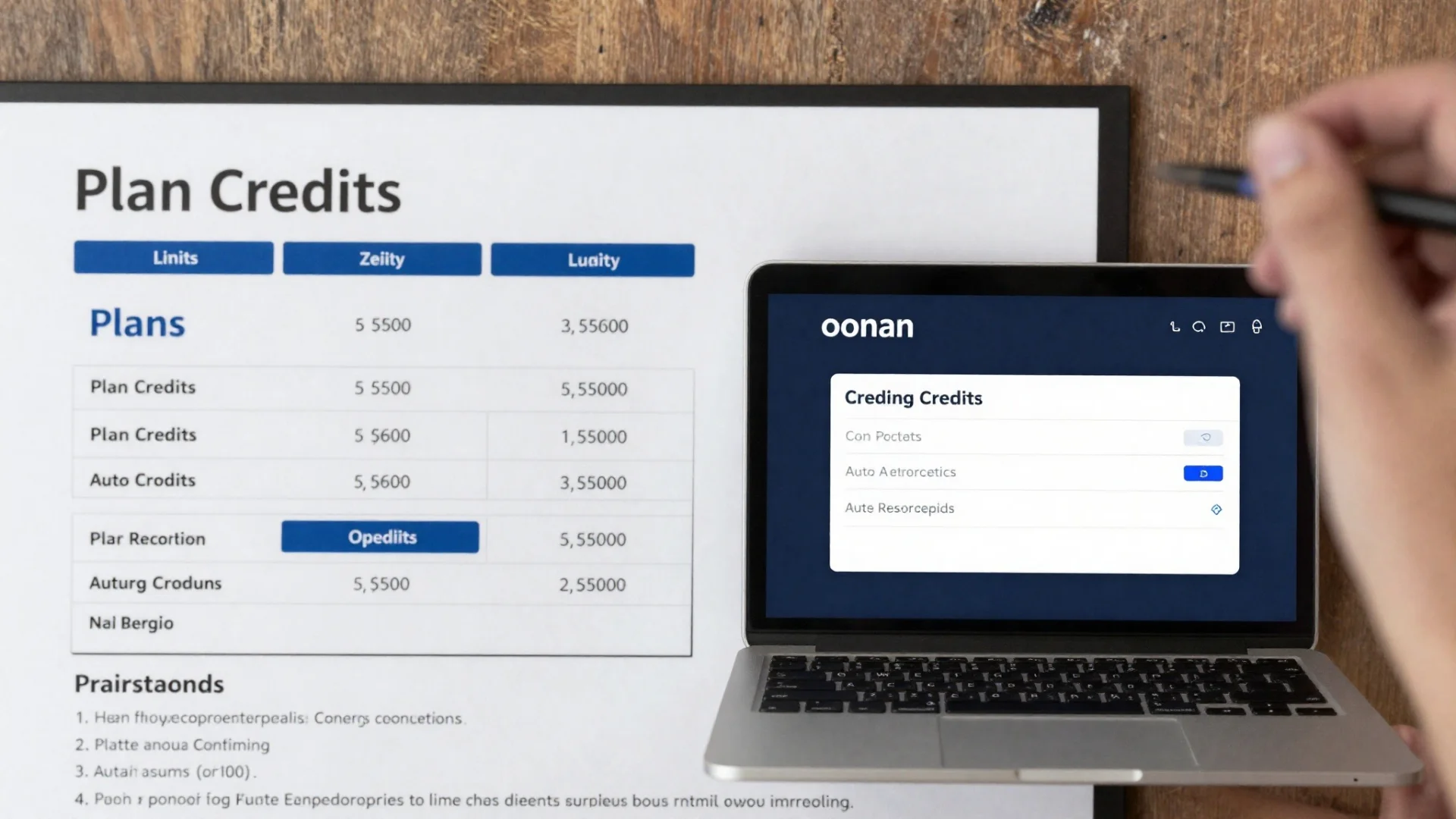
XRecorder uses credits. Every manual download uses one credit, and every automatic recording counts towards your plan's auto-recording allowance. At the time of writing the plans look like this:
| Plan | Price | Download credits | Automatic recordings |
|---|---|---|---|
| Starter | Free | Starter credits | Not included |
| Premium | $25 | 15 | 15 |
| Premium Plus | $40 | 40 | 40 |
If your credits run out, Auto-Track pauses and the Auto-Track page asks you to top up before new recordings can start. Keep an eye on your remaining credits – especially before a busy week of Spaces – so that an important session is not skipped. Prices and limits can change; the packages page always shows the current details.
Tips for complete, useful recordings
Track accounts, not single Spaces
Auto-Track works per account. If a guest you care about appears in someone else's Space, that Space is only recorded automatically if the host is on your list. For one-off events hosted by accounts you do not track, paste the Space link manually on the home page instead.
Spend your allowance on the hosts that matter
Some accounts start several short Spaces a day. If a host goes live very often, each session uses part of your allowance. Review your list from time to time and remove trackers for accounts whose Spaces you never listen to.
Download the files you want to keep
Recordings stay in your panel for a limited storage period that depends on your plan. Download the Spaces you want to keep long term and store them with a clear file name, for example 2026-09-15_hostname_topic.mp3.
Turn recordings into text
For long Spaces, start a transcript from your panel once the recording is completed. A transcript lets you search for names and keywords, find the exact minute a topic came up and pull accurate quotes. Proofread names and technical terms before you publish anything.
Check the first and last minutes
Play a few seconds from the beginning and the end of important recordings. If a Space was already running when tracking started, the very first minutes may be missing; in that case a replay – if the host kept one – can be downloaded afterwards with the normal Twitter Spaces download process.
Auto-Track vs. manual recording
| Manual (paste a link) | Auto-Track | |
|---|---|---|
| Best for | One-off Spaces and replays | Hosts who go live regularly |
| You need to know when it starts | Yes | No |
| Records while you sleep | Only if you started it in time | Yes |
| Works for ended Spaces | Yes, if a replay exists | No – it records live Spaces |
| Available on | All plans | Premium and Premium Plus |
Most active users combine both: Auto-Track for their core list of hosts, and manual downloads for everything else. The XRecorder user guide covers both workflows.
Recording on the go
Auto-Track runs in the cloud, so it keeps working no matter which device you use. If you also want to listen and record from a specific device, XRecorder offers a Chrome extension and apps for Android and Windows. The Android app adds trimming and a Studio mode for quick edits, and the Windows app includes a waveform view and noise reduction. You can find them on the XRecorder apps page.
Record responsibly
Recording a public Space for your own listening, research or notes is very different from republishing it. Before you share a clip, an episode or a transcript of someone else's Space, ask the host and speakers for permission and keep quotes in their original context. Remove personal details such as phone numbers or private stories from anything you publish. For your own Spaces, automatic recordings are simply the easiest way to reuse your content.
Frequently asked questions
Can I record a Twitter Space automatically without being online?
Yes. Auto-Track runs on XRecorder's servers. Once a host is on your tracking list, their Spaces are recorded even when your computer and phone are off.
Do I need to enter the full profile link?
No. Enter only the username, without the @ sign – for example username instead of https://x.com/username.
Will the host know I am recording?
XRecorder records the audio of public Spaces and does not post anything on your X account. Treat recordings of other people respectfully and follow the responsible-use advice above.
Can Auto-Track record Spaces that already ended?
No. Auto-Track is for live Spaces. To save an ended Space, paste its link on the home page; it can be downloaded as long as the host kept a replay.
What happens when my credits run out?
New automatic recordings cannot start until you top up. Recordings that are already in your panel are not affected.
Is Auto-Track available on the free plan?
No. The free Starter plan includes manual downloads. Auto-Track is part of the Premium and Premium Plus plans.
Never miss another Space
If you keep finding out about important Spaces only after they have ended, automatic recording is the fix. Create your account on XRecorder, add the hosts you follow to Auto-Track and let every Space land in your panel – complete, on time and ready to listen to.