


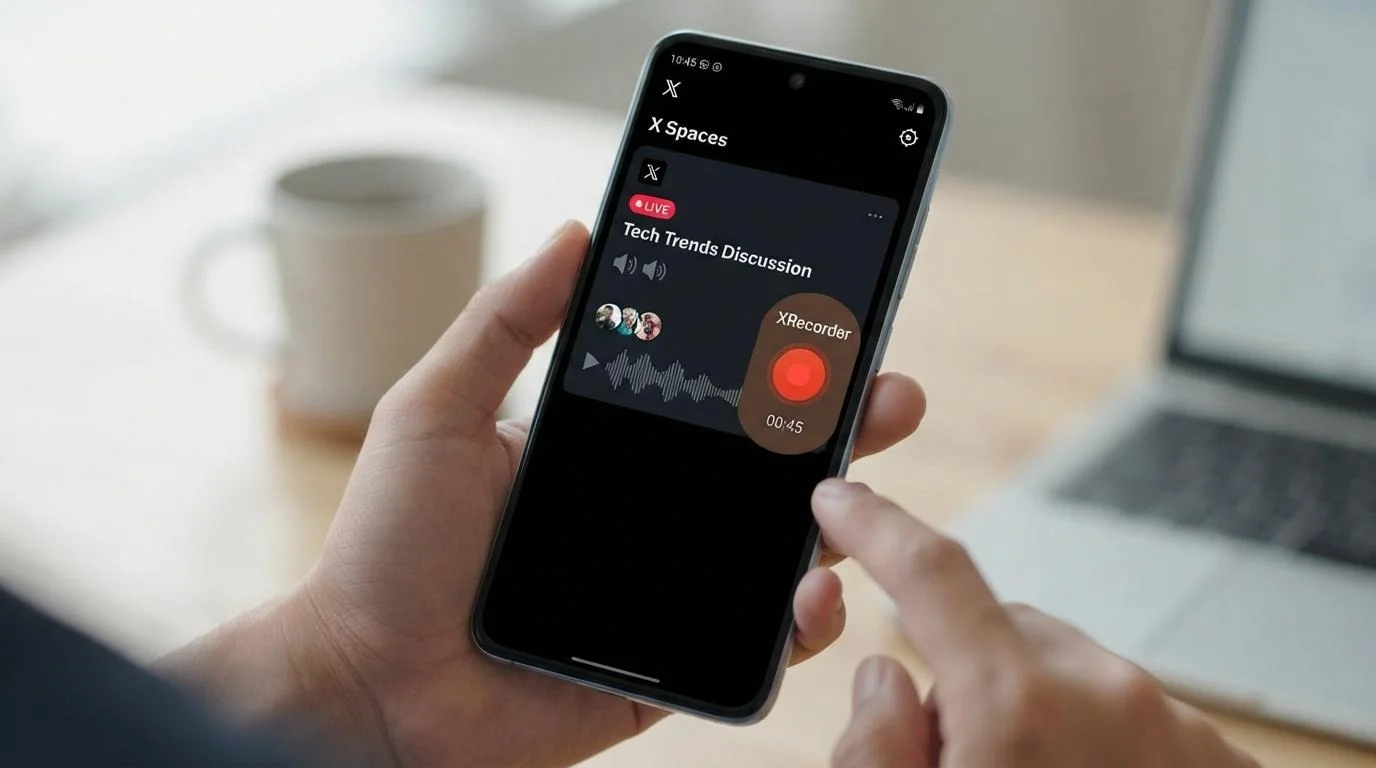
Recording X Spaces manually works when you use the right tool and press record before the room goes live. XRecorder records and downloads X Spaces on Chrome, Android, and Windows, so the workflow is simple once you know where the buttons are.
Join the room, start a recorder, and stop it when the talk ends. Then you can download the file as MP3 or MP4, edit it, transcribe it, or share it.
Manual recording works on Chrome, Android, and Windows. It also explains what happens when you miss a live session, because that is the most common frustration. Once a Space has ended, you cannot go back and capture it if the host never saved it. That limit comes from how Spaces work, not from one recorder.
How to Manually Record X Spaces with XRecorder
Manual recording means you decide when to hit record. You are not waiting on a scheduled job or an automatic trigger. So if you only want the Q&A, or a key moment starts while you listen, you can catch just that part. The basic process is the same on each platform.
When you record X Spaces manually, you control when the capture starts and stops. That matters if you want to skip a long intro or if you only need the Q&A. The steps below work with the Chrome extension, the Android app, and the Windows desktop application.
- Install the recorder on your preferred platform: Chrome extension, Android app, or Windows desktop application.
- Join the live X Space you want to record. Make sure the room is still live. If a Space is already over and the host did not record it, there is no way to grab the audio later.
- Start the recording manually. Click the record button in the recorder interface. Your recorder captures the live audio as it plays.
- After the Space ends, stop the recording. The app saves the file, and you can download it in MP3 or MP4 format.
For more background, see our manual recording guide for Twitter live audio.
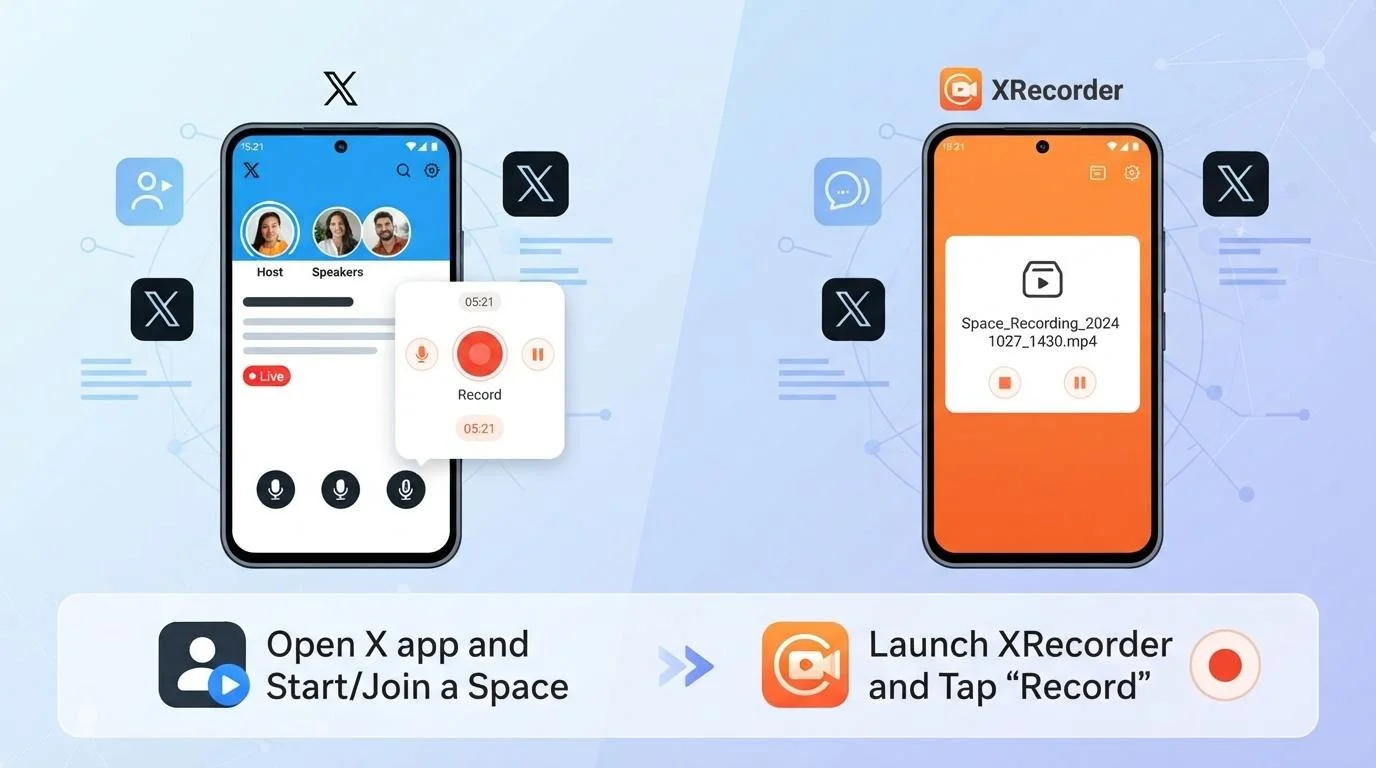
Recording via Chrome Extension
This is the fastest way to capture X Spaces on a desktop. You do not need a separate app. The extension sits in your browser and detects live Spaces when you open them. It works on both twitter.com and x.com.
Recording on Android
On Android, you can record X Spaces while you listen in the X app. The recorder runs in the background, so you can leave the screen on or off. Just make sure your phone does not kill the app to save battery.
Recording on Windows
With the Windows app, you can record X Spaces without keeping a browser tab open. It works alongside your normal desktop activities. You can manage several recordings and credits from one window.
Recording X Spaces on Chrome With the Extension
Chrome users get the least disruptive way to capture X Spaces because the extension lives where you already use X. You do not have to switch apps or change your listening setup. Here is the manual process.
- Add the extension to your browser from the Chrome Web Store.
- Log in to your account or sign up for free. The Starter package includes 2 download credits.
- Navigate to the X Space you want to record on twitter.com or x.com. The extension detects live Spaces.
- Click the extension icon and hit Record. The extension captures the audio stream directly from the browser.
- When the Space finishes, stop the recording. The app saves the file, so use your credits to download it.
One thing to watch: the extension needs the browser tab to stay open. If you close the tab, the recording stops. So keep the Space playing in a tab while you work on other things. You can mute your speakers if you do not want to hear it, but the tab must remain active.
If you use multiple browser profiles, install the extension in the profile where you are logged into X. Otherwise, the extension may not see the live Space.
How to Record Twitter Spaces on Android
Android users can record X Spaces while listening on a phone, without sitting at a computer. The manual recording process is simple, but you need to keep the app running.
- Download and install the recorder from Google Play.
- Open the app and log in. The free Starter package gives you 2 download credits to test.
- Join the live X Space via the X app. Keep the recorder running in the background.
- Tap the record button in the recorder to start capturing audio. The app records the sound.
- After the Space, stop recording. The app saves the file. You can download Twitter Spaces audio as MP3 or MP4, edit it, or share directly on X/Twitter.
Android can pause background apps to save battery. So check your phone settings and allow the recorder to run without restrictions. If you lock the screen and the system kills the app, you lose the recording. A quick test before an important Space helps you avoid that surprise.
You can also use headphones while recording. That keeps the audio clear and prevents echo from your phone speaker. If you need to move around, keep the phone charged. Long Spaces can drain a battery quickly.
Using the Windows App to Capture Twitter Live Audio
Windows gives you the most control when you record X Spaces because you can manage files, credits, and multiple recordings in one place. The app runs in the background without interrupting other tasks.
- Download and install the Windows desktop application.
- Launch the app and log in. The interface lets you manage recordings and credits.
- Open your browser or X app and join the live Space. The recorder runs in the background.
- Click Record in the app to start. The app begins saving the stream.
- When done, stop recording. The app saves the file, and you can trim, edit, transcribe, or share it.
If you record several Spaces in a day, name your files as soon as you stop. A name like "climate-panel-2025-03-12" is easier to find later than "recording-1". That small habit saves time when you need a Spaces replay or a download Twitter Spaces recording for an article.
Windows also lets you record while using a virtual meeting or a writing app. The recorder does not take over your screen. So you can take notes while the Space plays.
That is helpful for journalists and researchers who need both the audio and their own observations. For a comparison with screen recording, see X Broadcast Downloader.
What to Do After a Recording Session
Once you finish recording X Spaces, you have a file that can serve several purposes. The raw audio is only the start. You can turn it into a podcast, an article, a video clip, or a searchable transcript. A clean X Spaces recording is easier to publish or share.
Trimming and Editing : Use the built-in editor to trim silence or technical glitches. If you plan to publish a podcast, cut the waiting time at the start and any dead air. You can also remove audio dropouts that happen when a speaker's connection fails, so the result sounds cleaner without a separate editing suite. If you often need a Spaces downloader, these tools save time.
Transcription : Transcription turns the recording into text. If you are writing an article, you can search the transcript for key quotes, then check the audio for exact wording. That saves hours compared with listening to the whole recording again. You can also use the transcript for captions or show notes.
Sharing on : X You can create a video from the audio and share it directly on X/Twitter. If you run a community account, a two-minute highlight clip can drive more replies than a plain text summary. Add a simple waveform or cover image and post it while the topic is still fresh.
Before you share, check the audio for any private information. A live Space may include a phone number, an address, or a name that the speaker did not intend to broadcast widely. Trimming those moments protects the people in the recording and keeps you out of trouble. For more on creator workflows, see this creator guide.
What to Do If You Missed a Live Space
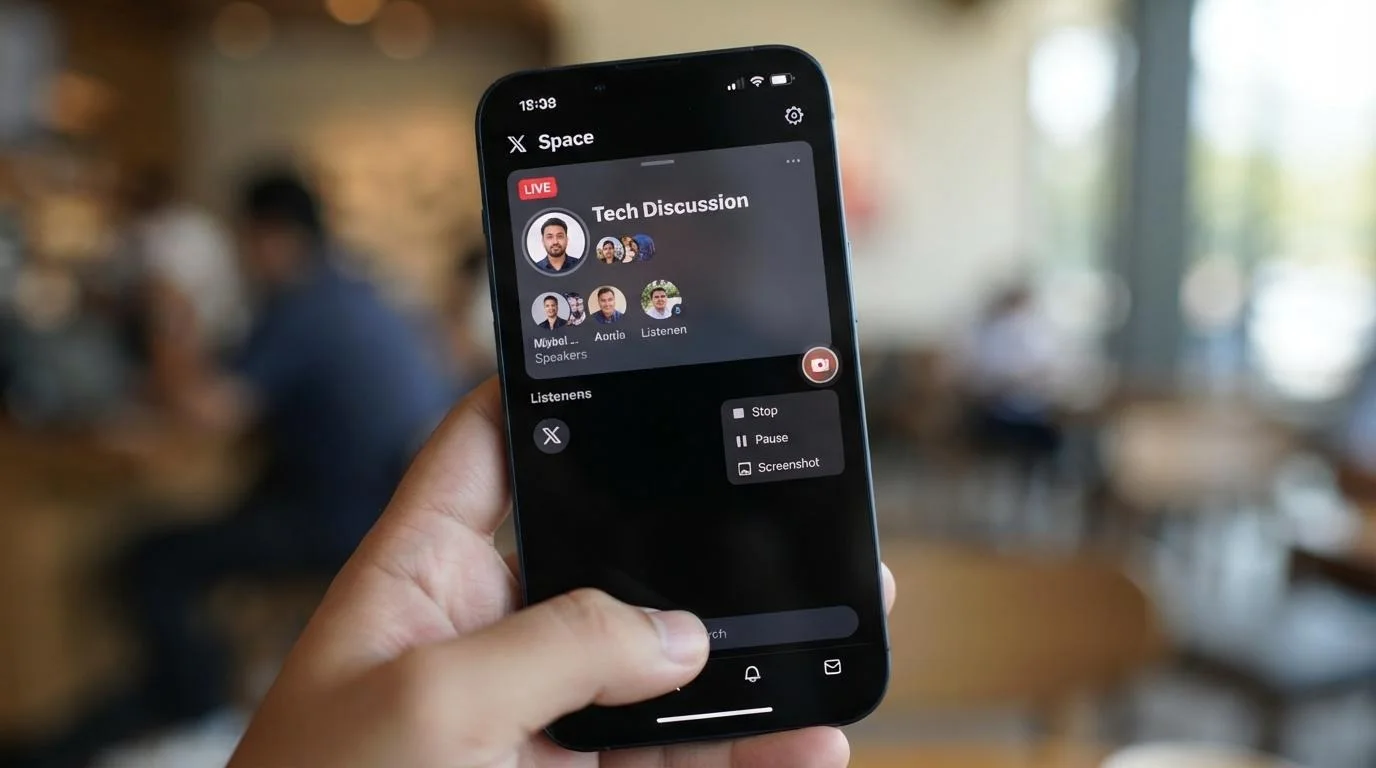
X Spaces have one hard limit: once a room closes, you cannot capture that audio if the host never recorded it. This is not a tool flaw. Once the live room closes, the audio is gone unless the host saved it. No recorder can pull it from the past.
According to X's official Spaces help page, hosts can record Spaces, but if they do not, the audio disappears later. That is why manual recording must happen while the Space is live.
Manual recording also requires you to be present at the start of the live X Spaces session. If you miss the first few minutes, you cannot capture them later. You can join late and record from that point, but the earlier part is lost.
To avoid missing future Spaces, set up Auto-Track. You follow an account, and the recorder automatically records when that account starts a Space. For example, if you follow a community account, Auto-Track can capture a surprise late-night Space while you sleep. You wake up to a recording instead of a missed notification.
Auto-Track is available in Premium ($25 for 15 auto recordings) and Premium Plus ($40 for 40 auto recordings).
One-Time Packages for Manual Recording
All packages are one-time payments, not subscriptions. You buy credits as needed, so you avoid monthly fees. The table below shows what each package includes.
| Package | Price | Download credits | Auto recordings | Storage | Support |
|---|---|---|---|---|---|
| Starter | Free | 2 | None | 3 months | Standard |
| Premium | $25 | 15 | 15 | 2 months | Priority |
| Premium Plus | $40 | 40 | 40 | 3 months | VIP priority |
All packages include Twitter sharing and fast download. Starter has no auto recording and no priority support. Premium adds priority support. Premium Plus adds VIP priority support.
Pick a package by matching credits and auto recordings to your monthly volume. Premium Plus, for example, covers 40 Auto-Track recordings and 40 download credits with VIP support.
Frequently Asked Questions About Twitter Spaces Recordings
- Can I download Twitter Spaces for free ? Yes. You can download X Spaces with the free Starter package. It includes 2 download credits. Record a live Space, then use one credit to download the file as MP3 or MP4. That lets you test the workflow before paying. If you need more credits or auto recording, you can upgrade later.
- How do I download a Twitter Space recording ? To download a Twitter Space recording, record the live X Spaces session first. Join the Space, start a manual recording, and stop when the conversation ends. Then open your library and download the file. You can choose MP3 for audio or MP4 for video. You need credits to download, and the free Starter package gives you two to start.
- What if the Space already ended? If the host did not record it, that audio is gone. No tool can pull it back. To avoid this, use Auto-Track on accounts you follow. When they start a Space, the recorder captures it automatically. That is the only reliable way to save a Space you might miss.
- Can I record Twitter Spaces on mobile? Yes. The Android app records live audio while you listen in the X app. Keep the recorder running in the background and allow it to work without battery restrictions. When the Space ends, stop the recording and download the file from the app.
- Is there a Twitter Spaces archive ? X does not keep a public archive of every Space, especially if the host did not record it. You can build your own archive by saving recordings. Download the files and store them on your device or cloud drive. Then you have a searchable, reusable library for later.
- If you want to record X Spaces without missing the next one, set up Auto-Track and choose a package that matches your volume. You can log in to your account, follow the accounts you care about, and let the recorder handle the rest.
- For manual sessions, keep the extension or app open when a Space goes live. That way you capture the audio, download it, and turn it into content you can use. If you need help choosing a package, our team is one message away.